Comparison
Shopify POS vs Square for online and counter sales
Compare Shopify POS vs Square costs, hardware, staff access, and offline limits. Use two store budgets and an editable workbook to choose.

For Shopify POS vs Square, first decide whether you’ll keep the online store where it is. If Shopify already runs the website, compare only the costs you add at the counter. For a new store, compare both channels and include the storefront subscription. The Shopify pricing guide covers the online commitment in more detail.
In a fictional US store with 100 counter sales at $40, using the Shopify POS included in Basic adds $114 per month in card fees. Square Free adds $119 before any connector costs. Shopify POS Pro changes the calculation: it adds an $89 monthly equivalent per location when billed annually. Both amounts depend on the published standard rates and the exact setup you qualify for.
The POS cost workbook has separate tabs for a new store and an existing Shopify site. The pricing references were checked on November 19. Use the later pilot cases to verify refunds, inventory, and offline behavior on your actual setup.
Shopify POS vs Square at a glance
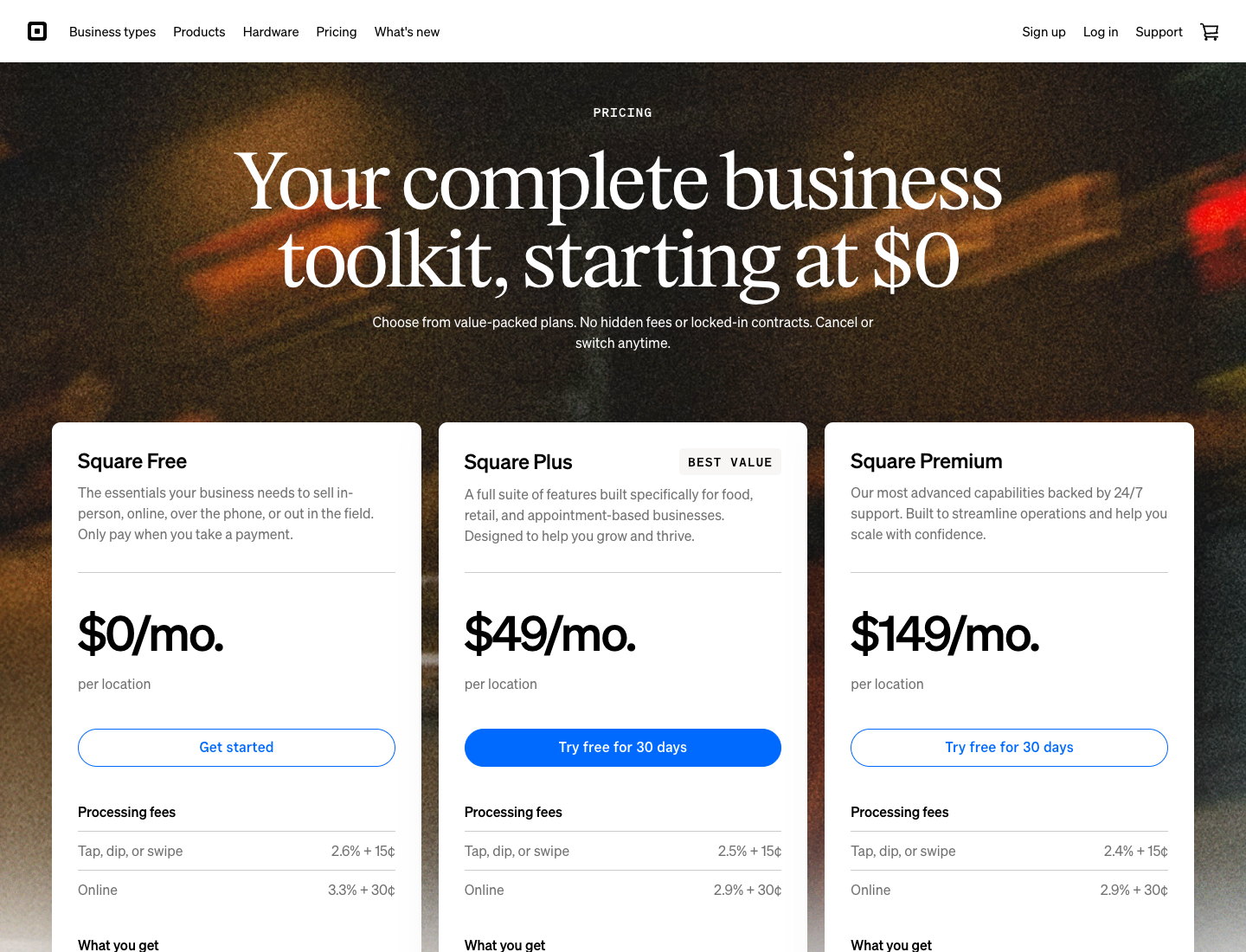
The compared Shopify setups use the US annual Basic reference. The Pro setup adds the annual POS Pro reference, not an inferred monthly-billing quote. Square Free and Plus use current US monthly plan pricing. All payment figures below are standard reference rates for the specified channel and plan.
| Decision | Shopify POS | Square |
|---|---|---|
| Starting software basis | A Shopify plan; Basic annual equivalent $29/month here | Free $0/month/location |
| Advanced setup modeled | Basic plus annual POS Pro, $118/month equivalent | Plus $49/month/location |
| Standard in-person rate, entry setup | Basic 2.6% + $0.10 | Free 2.6% + $0.15 |
| Standard online rate, entry setup | Basic 2.9% + $0.30 | Free 3.3% + $0.30 |
| Paid Square plan rates | Compare the selected Shopify plan | Plus 2.5% + $0.15 in person; 2.9% + $0.30 online |
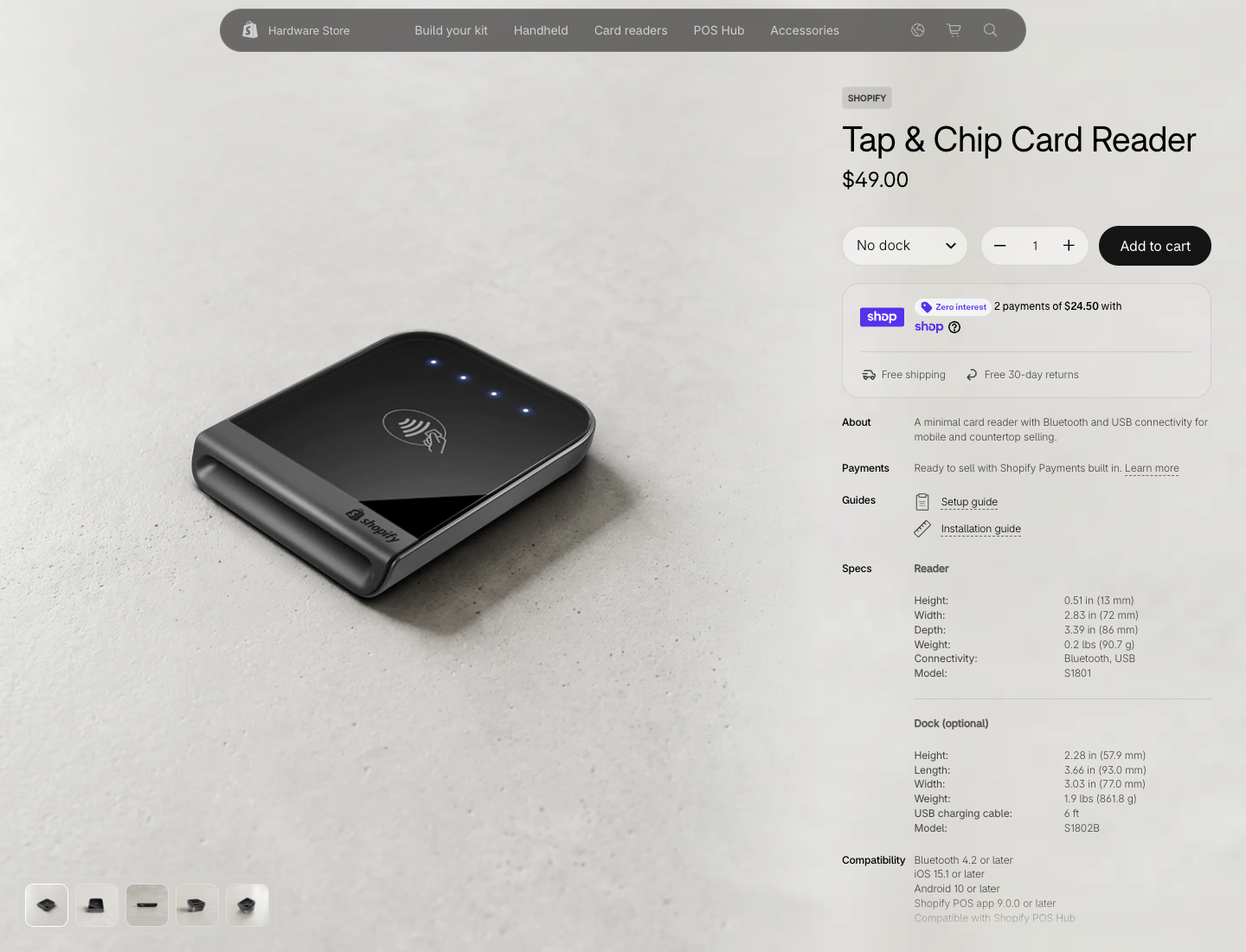
| Reader-only hardware example | Tap & Chip Reader, $49 | Contactless/chip Reader, $59 |
| Tablet in the model | Existing compatible device | Existing compatible device |
| Staff controls | POS Pro adds more advanced staff controls | One customizable Team Permissions set on all accounts |
| Inventory | Native Shopify catalog for a Shopify storefront | Square item library for Square online and in-person sales |
| Offline payments | Supported reader and settings required. Tap to Pay is excluded | Supported Reader/Stand: 24-hour session, upload within 72 hours of session start |
The current Square US pricing page is the source for Free and Plus rates. Older references to retired retail bundles can produce a different bill. Shopify’s POS pricing page supplies its plan references and the FAQ stating $89 per month billed yearly for each Pro location.
The staff and offline entries summarize the official help pages linked below. Confirm the exact plan, device, and permissions in your store.
Use the website-builder comparison for the online storefront decision; this page focuses on adding a counter to the same business.
Price the same counter and online sales
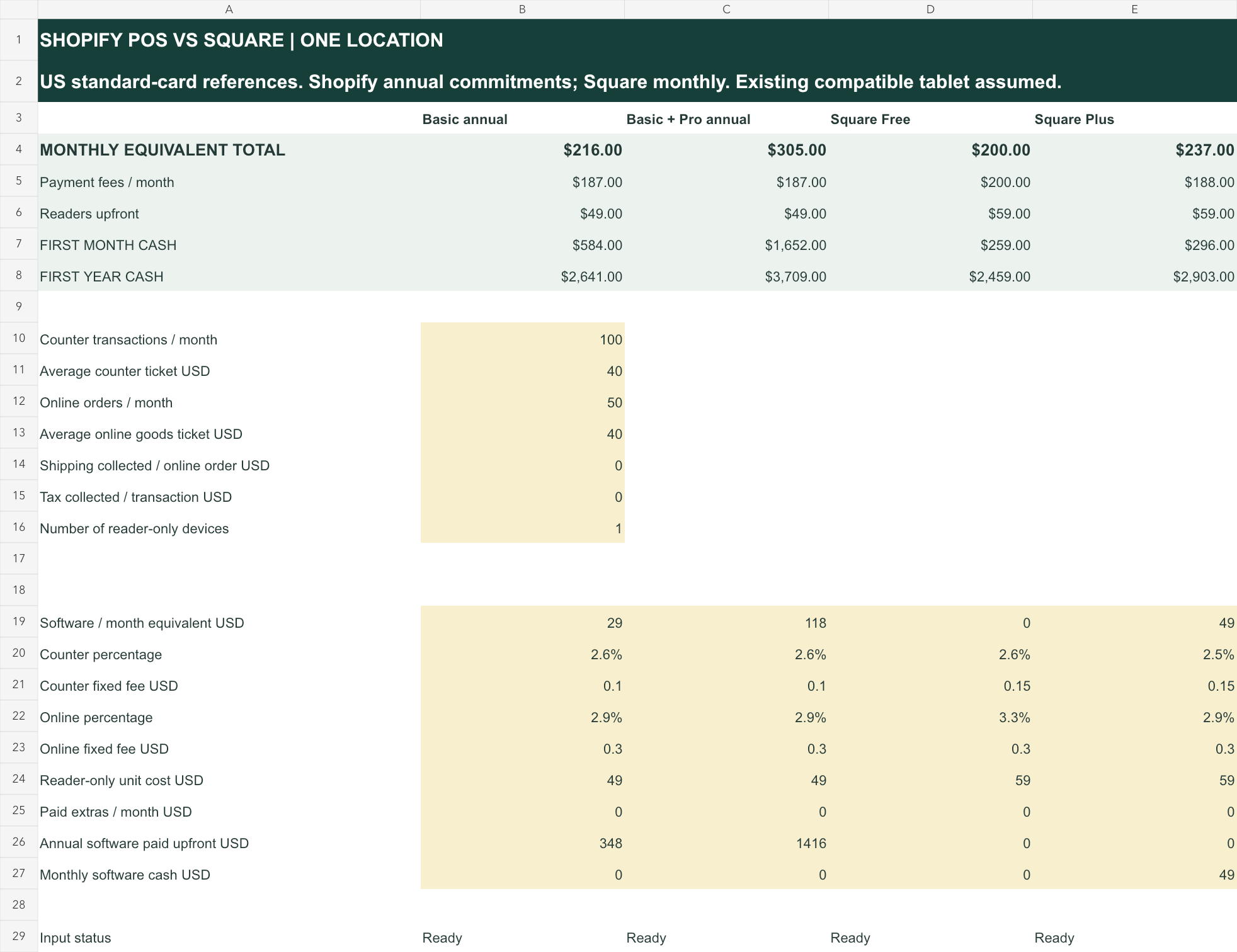
The workbook models four setups: Shopify Basic on an annual reference, Basic with annual POS Pro, Square Free, and Square Plus. The annual Shopify commitments are shown separately from their monthly equivalents so a lower-looking monthly number does not conceal an upfront bill.
Store A is fictional: one location, 100 counter transactions and 50 online orders each month, all at $40. Shipping and tax collected are zero in this example. All transactions use the standard domestic-card rates in the table, with no paid extras or refund/dispute costs.
| Setup | Payment fees/month | Software equivalent/month | Recurring total/month |
|---|---|---|---|
| Shopify Basic annual | $187 | $29 | $216 |
| Basic plus annual Pro | $187 | $118 | $305 |
| Square Free | $200 | $0 | $200 |
| Square Plus | $188 | $49 | $237 |
For Shopify Basic, the counter portion is $4,000 × 2.6% plus 100 × $0.10, or $114. The online portion is $2,000 × 2.9% plus 50 × $0.30, or $73. Adding the $29 software equivalent gives $216.
Square Free’s corresponding payments total $200: $119 at the counter and $81 online. In this sales mix, avoiding the software subscription outweighs its higher processing total. That conclusion belongs to this example; it is not a universal statement that Free is cheapest.
Store B changes only volume: 1,000 counter transactions and 200 online orders, again at $40.
The same calculations give these recurring monthly equivalents:
| Setup | Store B total/month | Difference from Square Free |
|---|---|---|
| Shopify Basic annual | $1,461 | $53 less |
| Basic plus annual Pro | $1,550 | $36 more |
| Square Free | $1,514 | Reference |
| Square Plus | $1,491 | $23 less |
Square Plus’s fee-only break-even against Free is also visible from the published rates. Their fixed per-transaction charges match within each channel. In this narrow standard-card model, the monthly saving is 0.1% of counter payment volume plus 0.4% of online payment volume. Compare that saving with the $49 location subscription; required features remain a separate reason to choose the paid plan.
Store A saves $4 at the counter and $8 online, or $12 before the subscription. Paying $49 to obtain that $12 saving increases the modeled bill by $37. Store B saves $40 and $32, or $72; paying $49 leaves a $23 saving. Those are the same differences in the tables, explained as a threshold the operator can recalculate.
Keep Shopify online and add a counter
If the website and its payments stay on Shopify, their costs are common to all four choices. In the same fictional one-location store, 100 monthly counter payments of $40 produce these added amounts before buying hardware or paying for a connector.
| Counter setup | Monthly card fees | Added software/month | Added total/month |
|---|---|---|---|
| Shopify POS included with Basic | $114 | $0 | $114 |
| Shopify POS Pro with annual billing | $114 | $89 | $203 |
| Square Free | $119 | $0 | $119 |
| Square Plus | $115 | $49 | $164 |
The existing Shopify store tab shows these figures, hardware separately, and a field for added connector or software costs. Enter those costs if Square has to reconcile with Shopify. In this example, Square Free costs $5 more than included Shopify POS before connector fees. Against Shopify POS Pro, Square Free starts $84 lower before any extra software or reconciliation costs.
The change in ranking comes from transaction counts, ticket values, and channel rates. It does not prove that Basic meets Store B’s staff or inventory requirements. If the operation needs Pro or another plan, compare that qualifying setup instead.
The model lets you enter shipping collected and tax collected rather than pretending that only product revenue reaches the processor. Use actual processing bases and account terms. Premium, international, manually entered, and other card types can have different rates; the model’s narrow references do not represent a blended historical statement.
Open the cost workbook and inspect the larger-store case by changing the shared volume inputs. Keep the checkout requirements beside the bill: the lowest total is useful only if the intended checkout and order handling work.
Separate hardware from software commitments
The hardware example is deliberately reader-only. Shopify’s official US hardware store shows a $49 Tap & Chip Reader. Its optional dock bundle is a different purchase. Square’s comparable contactless and chip Reader is $59; the free-first-reader magstripe offer is not the same device.
Both example setups assume you already own a compatible tablet or phone. A stand, dock, printer, scanner, cash drawer, accessories, shipping charges where applicable, and purchase tax require their own budget. The reader price is not the cost of opening a fully equipped checkout counter.
For Store A, the first-month cash calculation differs substantially from the recurring comparison. Basic’s annual reference requires $348 upfront. Basic plus annual Pro requires $348 plus $1,068 for the location. The workbook adds the current month’s processing and the reader purchase to those commitments.
That produces $584 for Basic, $1,652 for Basic plus Pro, $259 for Square Free, and $296 for Square Plus in the example’s first month. These are modeled cash amounts before excluded costs, not vendor checkout quotes. They assume the annual commitments are paid at setup and one reader is purchased.
Shopify’s browser pages can localize currency despite a US footer selection. Our captured POS pricing pages showed INR; the US dollar references come from the official US source responses and the yearly-billed Pro FAQ. A regional screenshot must not be presented as proof of a US-dollar invoice.
Use the Shopify plan detail to verify the actual offer, location count, billing term, and applicable card category before committing.
The workbook does not infer a separate US monthly POS Pro price from a regional toggle.
Check staff access and refund control
List the actions staff need before counting logins. Taking a payment, issuing a refund, changing a price, viewing reports, receiving stock, and changing permissions are different responsibilities. A team can need several sales logins while still requiring strict control over refunds and administrative settings.
Shopify documents POS roles and permissions and ties available capabilities to the store’s configuration. Its Pro offering includes more advanced staff controls. Verify the actual role and plan combination rather than assuming an online administrator and a POS-only employee have identical access.
Square documents a single customizable Team Permissions set for all accounts and notes that its shared team passcode does not track individual staff sales, time, or activity. Check the additional permission and tracking capabilities your chosen setup requires. Square permission sets. Demonstrate the required actions, including what an employee cannot do. A pricing table can identify a feature to inspect, but it cannot prove a store’s final permission configuration.
Use a concrete staff case: a cashier can complete a normal sale, a supervisor can approve a return, and the owner controls sensitive changes. Test the role boundaries with separate users, not by showing that the owner account can perform every action.
Keep the resulting responsibilities with the inventory and operating records.
A cheap plan that requires an unsafe shared credential is not a completed access design, and buying a paid plan does not automatically configure safe permissions.
Keep stock consistent across channels
Decide which catalog owns each sellable item. A shared business name does not guarantee that the online storefront, counter app, warehouse, and purchasing system all use the same item and variant identifiers. Map the stock keeping units (SKUs) before migrating quantities or connecting another sales channel.
For an existing Shopify store, using Shopify POS can keep the intended online and counter operations within its catalog. That is a reason to inspect the native setup, not proof that every external warehouse or marketplace connection behaves correctly. Keep the Shopify platform review separate from those integration checks.
Square provides an item library and inventory features for its online and in-person offering. If the online store stays elsewhere, identify the actual connector and its responsibilities. Native Square online selling and a third-party connection to a different storefront are different configurations, with potentially different costs and failure modes.
Use one product with multiple variants and a small starting quantity for the pilot. Confirm which location’s stock a counter sale reduces, how an online order reserves or reduces stock, and how the store handles a stockout event. Then check a return, cancellation, and stock adjustment.
| Event | Expected record to inspect | Question to resolve |
|---|---|---|
| Counter sale | Item, variant, location, payment, quantity | Did the correct stock balance change? |
| Online order | Order and inventory reservation or deduction | Is the same sellable unit affected? |
| Return | Refund and stock disposition | Was stock restored only when appropriate? |
| Replacement | Link to the original order and new dispatch | Is the movement distinguishable from a new sale? |
| Connector retry | One intended event, traceable status | Can a retry duplicate or omit a change? |
The fulfillment services guide helps assign the system owner when another team receives or dispatches stock. Neither platform’s subscription can substitute for that decision. If the same event updates quantities in two places, agree how you will prevent double-counting.
We have not measured synchronization latency or proved that a connector handles these exceptions. Ask for a demonstration using your actual configuration and keep the resulting records. A “real-time sync” label without an acceptance case does not tell an operator what happens after a failure.
Prepare for offline payments carefully
Both platforms document offline card-payment capabilities, but neither makes an offline payment equivalent to a confirmed online authorization. Hardware, settings, supported payment methods, and reconnect behavior matter. A merchant remains exposed when a stored payment later fails.
Shopify’s offline-payment documentation requires supported readers and activation. It excludes Tap to Pay and manual card entry in the described offline mode, among other limitations. Payments process after reconnection; Shopify recommends reconnecting as soon as possible, ideally within 24 hours. Certain terminal configurations also depend on a working local network.
Square’s offline-payment guidance distinguishes device session limits and uploading payments. For the documented supported Reader/Stand setup, the offline session lasts 24 hours and payments must be uploaded within 72 hours of its start. Square recommends uploading within 24 hours and makes the merchant responsible for expired, declined, or disputed payments.
Those are documentation boundaries, not a completed outage test.
Before a market or busy trading day, prepare a device-specific check:
- Confirm the exact supported reader and app configuration.
- Activate the intended offline settings and staff permissions.
- Set an acceptable transaction and cumulative exposure policy.
- Define a reconnection deadline and who checks pending payments.
- Retain a permitted way to contact the customer if payment fails.
Do not assume that an offline sale immediately updates an online stock balance. Include the stock and order reconciliation after reconnection in the inventory acceptance check. Payment capture and inventory consistency are separate requirements.
Pilot the transactions that can break a store
Run a small controlled pilot before moving a live counter. The objective is not to prove that the owner can take one ordinary payment. It is to verify the actions that determine stock, money, staff access, and customer communication in the configuration you intend to buy.
Start with known items, quantities, and expected results. Use the vendor’s appropriate test facilities where available; any real transactions require the store’s normal authorization and reconciliation. This article has not performed those transactions on the reader’s behalf.
Include these cases in the pilot:
- A normal counter sale and an online order for the same variant.
- A permitted discount and a price change that should require approval.
- A return with refund and an explicit decision about restocking.
- A partial return from an order containing several products.
- An out-of-stock case at the relevant location.
- An offline attempt on the exact supported hardware, followed by reconnection.
- A staff user attempting an action their role should block.
- A connector exception, where an external system participates.
For each case, keep the starting state, action, expected result, observed record, and unresolved issue.
A screenshot of the happy-path sale does not establish that refunds, permissions, and stock changes passed too.
Then reconcile the pilot with the cost workbook. If the accepted setup needs another location subscription, paid connector, extra reader, or supervisor capability, enter that cost before comparing totals. Keep implementation effort separate from recurring software and processing.
The workbook was checked with changed volumes and missing inputs. Store A’s modeled recurring totals change to Store B’s totals when transaction counts change, while a cleared required ticket input withholds the comparison. These are spreadsheet checks, not proof of live POS behavior.
Its first-year totals assume 12 identical trading months and the entered reader purchase. A seasonal retailer should model the actual pattern and contract commitments. A fixed annual subscription does not disappear during a quiet month merely because transaction volume falls.
Choose from the passed store requirements
Choose Square Free when its actual catalog, online setup, staff capabilities, and operating checks fit, and the no-subscription setup remains the right bill for the store’s payment mix. Store A illustrates that case: $200 in modeled recurring costs is lower than Basic’s $216 annual equivalent, before excluded costs.
Choose Square Plus when its required capabilities or processing economics justify the $49 location subscription. In Store B, its modeled $1,491 total is below Free’s $1,514. A rate saving is one reason to evaluate the paid plan; the required operational features still need to pass.
Choose Shopify POS when the Shopify catalog and accepted store operations support the online-and-counter business at an acceptable total cost. Basic’s $1,461 annual-equivalent Store B model is lower than the Square examples, but it is irrelevant if the store needs Pro’s capabilities. Use the qualifying $1,550 Pro model in that case.
The annual Shopify references also require more cash at setup. An existing subscriber may treat some subscription cost as already committed, while a new merchant must fund the whole setup. Record which situation you are comparing rather than subtracting a cost on one side without explanation.
Open the POS comparison workbook, enter the store’s actual transaction mix and hardware count, and pair the result with the pilot’s passed requirements. Verify the final account quote and billing term before choosing the plan that will run the counter.